 1a8868f0cd
Tests:

- Setup: add domain name mystable.example. Add an entry in /etc/hosts on the
  test machine. In Firefox, in about:config, set
  'security.webauthn.allow_with_certificate_override' to 'true'.
- Registration
  - Passkey successful registration:
    - After passkey registration, created time is time at which key is created.
    - After passkey registration, domain is the domain with which the interface
      is accessed at the time of addition of passkey.
    - After passkey registration, Added and Last Used columns show the current
      time in UTC. Signature counter and extensions and aaguid values in the DB
      are as expected.
    - First key's name is 'Key 1'. After that it is 'Key 2' and so on. If a key
      is renamed as 'Key 4', then next key will be named 'Key 5'.
    - Registering passkeys using testing container stable container works.
  - Links:
    - 'Manage passkeys' link is show in the user menu in navbar in both desktop
      mode and mobile mode. Clicking on it redirects the browser to current
      user's passkey management page.
    - User's edit page shows 'Use passkeys for better security'. Clicking on the
      link redirects the browser to passkey management page for the user who's
      account is being edited.
  - Listing:
    - All passkeys are show properly. Name, domain, added, last used, and
      operations show correctly.
    - When using a browser without Javascript script shows an error alert.
    - If not passkeys are present "No passkeys added to user account." message
      is shown.
  - Editing the passkey shows correct page. Title, heading, form labels, form
    value, and buttons are as expected. After editing, passkey is updated
    properly.
  - Deleting the passkey shows a model dialog with correct details. After
    confirmation, passkey is removed and page is refreshed.
  - Error handling:
    - On GNOME's Web, clicking the 'Add Passkey' shows the error 'Browser does
      not support passkeys'.
    - On Chromium, clicking the 'Add passkey' shows the error 'NotAllowedError:
      WebAuthn is not supported on sites with TLS certificate errors.'
    - Raising an error in passkey_add_begin() results in correct error message
      shown with 'Add passkey' button is clicked. Status code is 500.
    - Raising an error in passkey_add_complete() results in correct error
      message shown after unlocking the hardware token. Status code is 500.
    - Canceling the PIN dialog results in '...user denied permission' error
      alert.
    - Canceling the touch dialog results in '...user denied permission' error
      alert.
    - Multiple failed attempts result in multiple alerts being shown at the same
      time.
  - Editing another user's passkeys:
    - Listing passkeys show correct list of passkeys for the user account being
      managed.
    - Adding passkeys adds correctly to the user account being managed.
    - Editing passkey correctly edits passkey of the user account being managed.
      Redirect happens to the correct page after.
    - Deleting passkey correctly edits passkey of the user account being
      managed. Redirect happens to the correct page after.
    - If a non-admin user tries to access passkeys list/edit/delete URL of
      another user, 403 Forbidden error is raised

Signed-off-by: Sunil Mohan Adapa <sunil@medhas.org>
Reviewed-by: James Valleroy <jvalleroy@mailbox.org>





FreedomBox Service (Plinth)
The core functionality and web front-end of FreedomBox.



Description
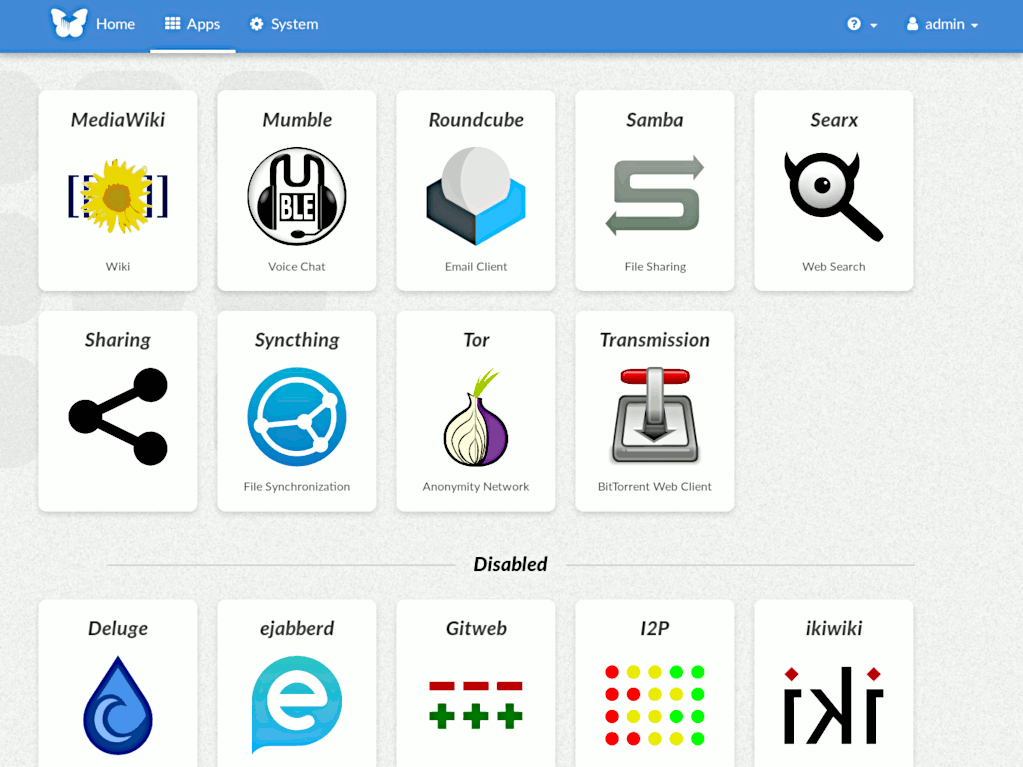
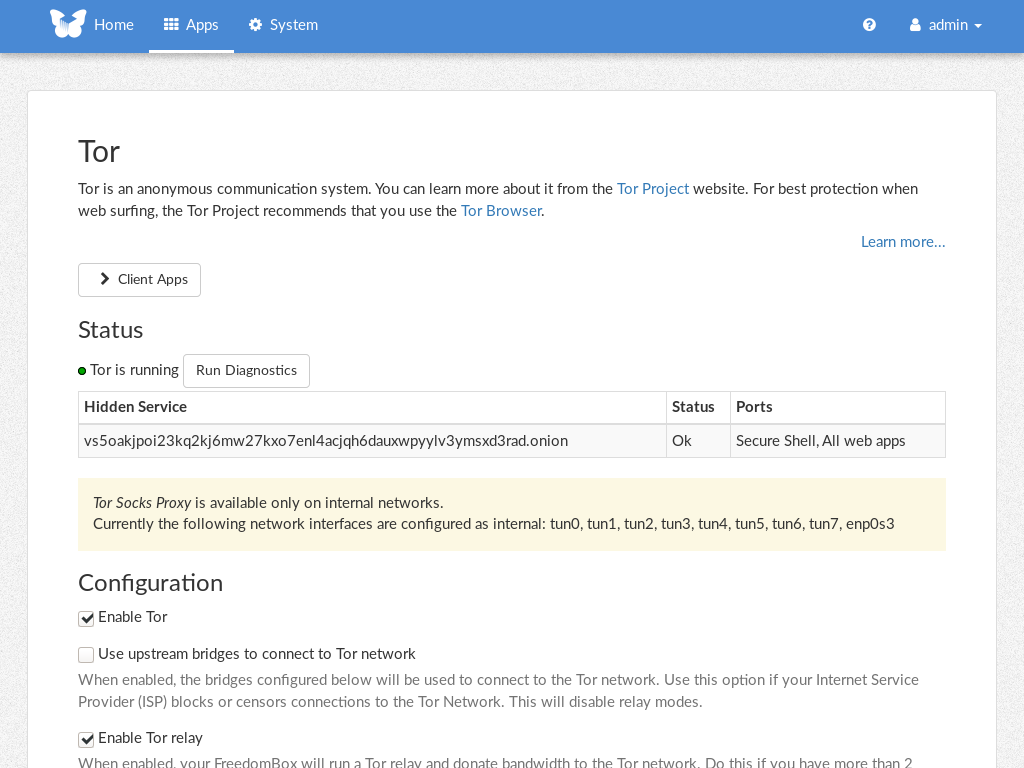
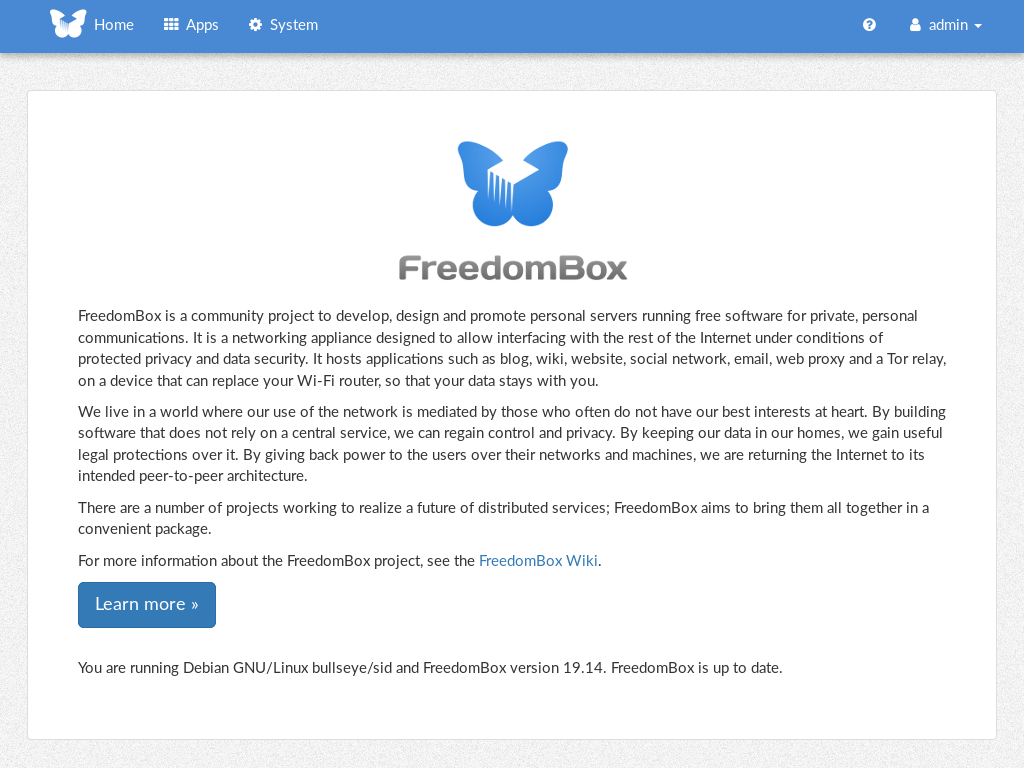
FreedomBox is a community project to develop, design and promote personal servers running free software for private, personal communications. It is a networking appliance designed to allow interfacing with the rest of the Internet under conditions of protected privacy and data security. It hosts applications such as blog, wiki, website, social network, email, web proxy and a Tor relay, on a device that can replace your Wi-Fi router, so that your data stays with you.
This module, called FreedomBox Service and also know as Plinth, is the core functionality and web interface to the functions of the FreedomBox. It is extensible and provides various applications of FreedomBox as modules. Each module or application provides simplified user interface to control the underlying functionality. As FreedomBox can act as a wireless router, it is possible to configure networking. It also allows configuration of basic system parameters such as time zone, hostname and automatic upgrades.
You can find more information about FreedomBox Service (Plinth) on the Plinth Wiki page, the FreedomBox Wiki and the FreedomBox Manual.
Getting Started
To have a running FreedomBox, first install Debian (Buster or higher) on a clean machine. Then run:
$ sudo apt install freedombox
Full instructions are available on FreedomBox Manual's QuickStart page.
For instructions on running the service on a local machine from source code, see INSTALL.md. For instructions on setting up for development purposes, see HACKING.md.
Contributing
See the HACKING.md file for contributing to FreedomBox Service (Plinth).
Localization

License

FreedomBox is distributed under the GNU Affero General Public License, Version 3 or later. A copy of AGPLv3 is available from the Free Software Foundation.