20f2ff9370
- Avoid no-response error when deleting a snapshot. This is caused when disk is
full and delete operation tries to store data in session which is stored on
disk. The session update fails and there are no values to delete. This case in
not handled and return a None in view causing a 500 error. Use GET params
instead.

- Delete all functionality that is meant to speed up deleting snapshots has
regressed and is currently never used. Further, there are more types of
snapshots that can't be deleted that needs to be handled in delete all
functionality. Drop it for now.

- When snapper list is run the snapshot number can contain '-', '+' or '*'
suffixed to it. Currently only '*' is handled. This leads to failure in listing
the snapshots after a restore snapshot'. Fix this is properly parsing. Also it
is no longer needed to query 'btrfs' command to know the snapshot that will
used at next boot. '+' or '*' means that.

- Don't list snapshot number '0'. It is never listed to the user and it can
never be deleted. It represents the current system.

- Properly implement checking for default and active snapshots. Don't let delete
operation on either of them.

- Fix regression with disabling the delete button when there are no snapshots
that can be deleted.

Tests performed:

- Before any snapshot is restored, the labels 'will be used at next boot' and
'in use' are not shown. Snapshot with number 0 is not shown.

- Immediately after restoring a snapshot, the 'will be used at next boot' label
will shown up on snapshot that is going to boot next.

- After rebooting after restore, the snapshot that has been restored will show
'will be used at next boot' and 'in use' labels. Restoring another snapshot will
move the 'will be used at next boot' label to the new restore snapshot but keep
the 'in use' label on the current snapshot until next reboot. Snapshot with
number 0 is not shown.

- Delete check boxes are not shown against the 'in use' and 'will be used at
next boot' snapshots. Entering their values manually in the URL in the delete
screen will lead them to be ignored.

- Select multiple snapshots and click delete. The details appear properly in the
confirmation window. Deleting will delete the snapshots.

Signed-off-by: Sunil Mohan Adapa <sunil@medhas.org>
Reviewed-by: James Valleroy <jvalleroy@mailbox.org>





FreedomBox Service (Plinth)
The core functionality and web front-end of FreedomBox.
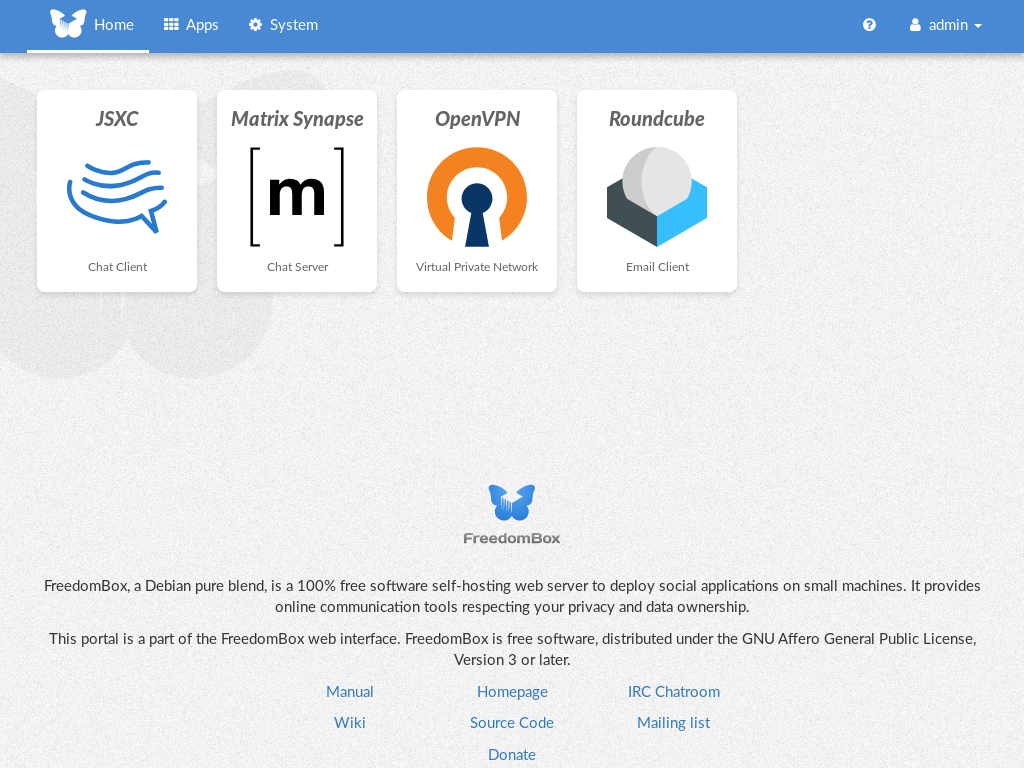


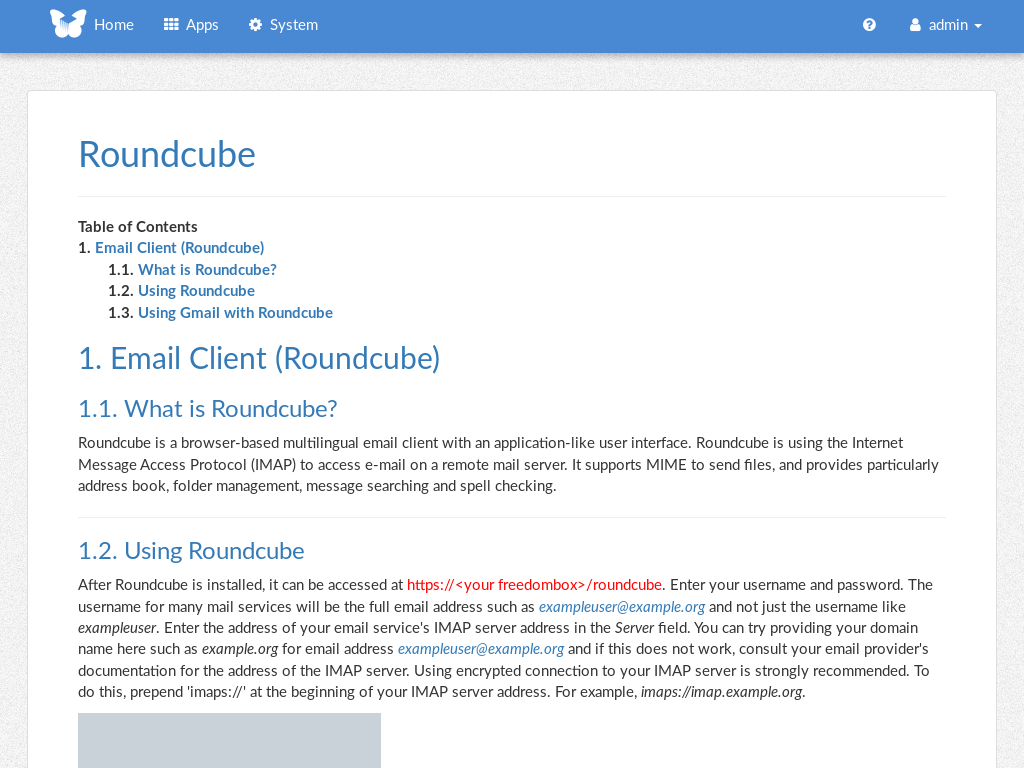

Description
FreedomBox is a community project to develop, design and promote personal servers running free software for private, personal communications. It is a networking appliance designed to allow interfacing with the rest of the Internet under conditions of protected privacy and data security. It hosts applications such as blog, wiki, website, social network, email, web proxy and a Tor relay, on a device that can replace your Wi-Fi router, so that your data stays with you.
This module, called FreedomBox Service and also know as Plinth, is the core functionality and web interface to the functions of the FreedomBox. It is extensible and provides various applications of FreedomBox as modules. Each module or application provides simplified user interface to control the underlying functionality. As FreedomBox can act as a wireless router, it is possible to configure networking. It also allows configuration of basic system parameters such as time zone, hostname and automatic upgrades.
You can find more information about FreedomBox Service (Plinth) on the Plinth Wiki page, the FreedomBox Wiki and the FreedomBox Manual.
Getting Started
To have a running FreedomBox, first install Debian (Buster or higher) on a clean machine. Then run:
$ sudo apt install freedombox
Full instructions are available on FreedomBox Manual's QuickStart page.
For instructions on running the service on a local machine from source code, see INSTALL.md. For instructions on setting up for development purposes, see HACKING.md.
Contributing
See the HACKING.md file for contributing to FreedomBox Service (Plinth).
Localization