355b2be90e
Reuse the method in package.py that checks is package manager is busy without
printing and error log.

Tests performed:

- Try to install a package and wait at the apt confirmation prompt.

- Go to power index page /sys/power/ . It shows a warning that package manager
is busy. No error log is printed.

- Go to system restart page. It shows a warning that package manager is busy. No
error log is printed.

- Go to system poweroff page. It shows a warning that package manager is busy.
No error log is printed.

- Without package manager being busy, above warnings are not shown.

- Go to manual update package. It shows as updating if apt is busy, otherwise
shows the manual update button.

Signed-off-by: Sunil Mohan Adapa <sunil@medhas.org>
Reviewed-by: James Valleroy <jvalleroy@mailbox.org>





FreedomBox Service (Plinth)
The core functionality and web front-end of FreedomBox.
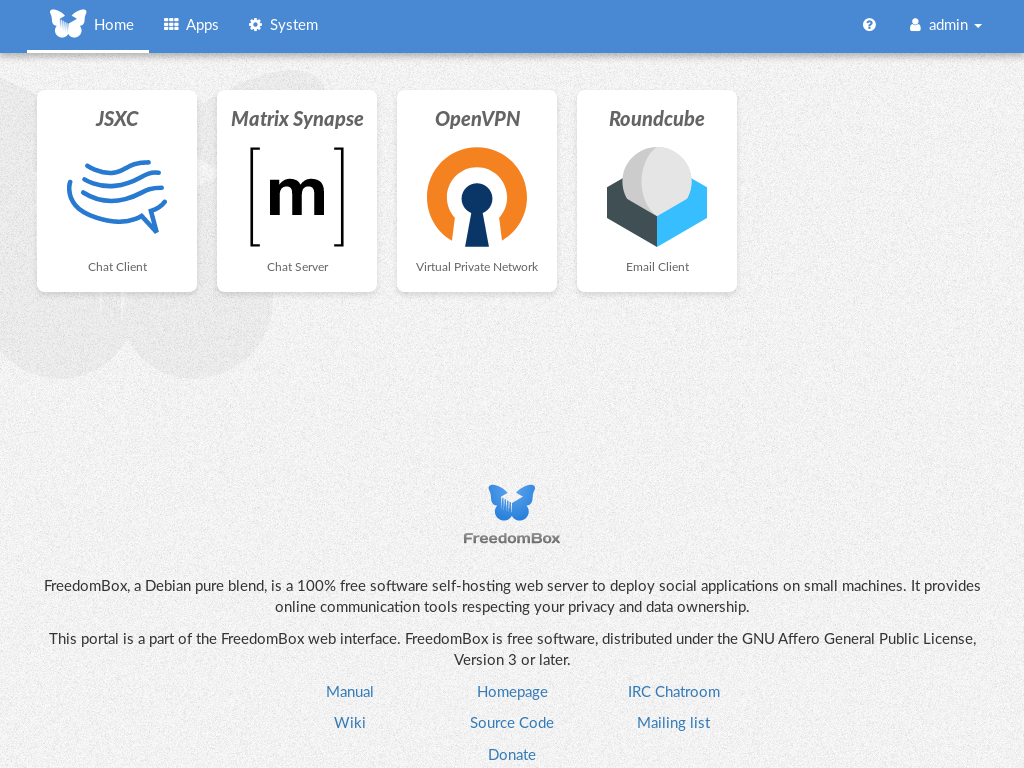


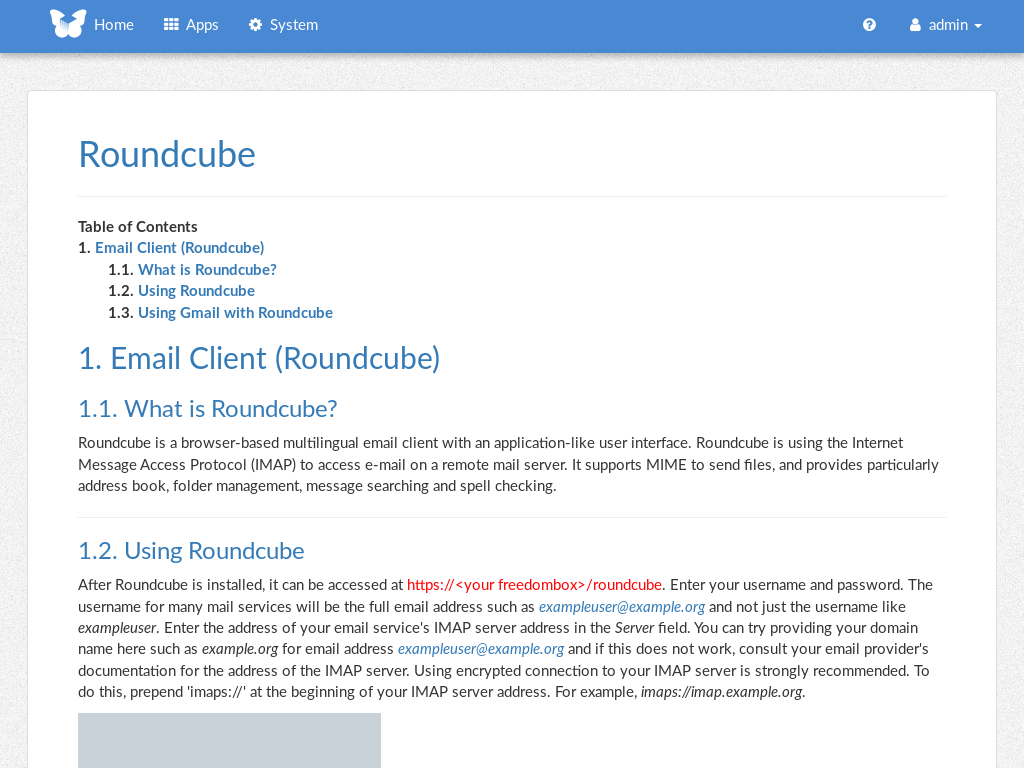

Description
FreedomBox is a community project to develop, design and promote personal servers running free software for private, personal communications. It is a networking appliance designed to allow interfacing with the rest of the Internet under conditions of protected privacy and data security. It hosts applications such as blog, wiki, website, social network, email, web proxy and a Tor relay, on a device that can replace your Wi-Fi router, so that your data stays with you.
This module, called FreedomBox Service and also know as Plinth, is the core functionality and web interface to the functions of the FreedomBox. It is extensible and provides various applications of FreedomBox as modules. Each module or application provides simplified user interface to control the underlying functionality. As FreedomBox can act as a wireless router, it is possible to configure networking. It also allows configuration of basic system parameters such as time zone, hostname and automatic upgrades.
You can find more information about FreedomBox Service (Plinth) on the Plinth Wiki page, the FreedomBox Wiki and the FreedomBox Manual.
Getting Started
To have a running FreedomBox, first install Debian (Buster or higher) on a clean machine. Then run:
$ sudo apt install freedombox
Full instructions are available on FreedomBox Manual's QuickStart page.
For instructions on running the service on a local machine from source code, see INSTALL.md. For instructions on setting up for development purposes, see HACKING.md.
Contributing
See the HACKING.md file for contributing to FreedomBox Service (Plinth).
Localization