8ab665a7a2
- To be able to write to folders shared with other apps.

- Increment app version so that already installed apps also get upgraded and
mldonkey becomes part of freedombox-share group.

- Ensure that app does not get enabled after upgrade.

- Relax path restrictions for write access so that mldonkey can write to
external disks and root disk shared folders.

Closes: #1813.

Tests performed:

- Install app freshly mldonkey user is part of freedombox-share group.

- Install app without changes. Switch to a branch with changes. Run ./setup.py
install. The app is upgraded after run. mldonkey user is now part of
freedombox-share group. To check run sudo actions/users get-group-users
freedombox-share.

- Modify options -> Shares and Add Share with a group shared folder with
strategy incoming_files. Remove old share with strategy incoming_files.
Downloading a new file means it will be stored in the shared folder.

Signed-off-by: Sunil Mohan Adapa <sunil@medhas.org>
Reviewed-by: Veiko Aasa <veiko17@disroot.org>





FreedomBox Service (Plinth)
The core functionality and web front-end of FreedomBox.


Description
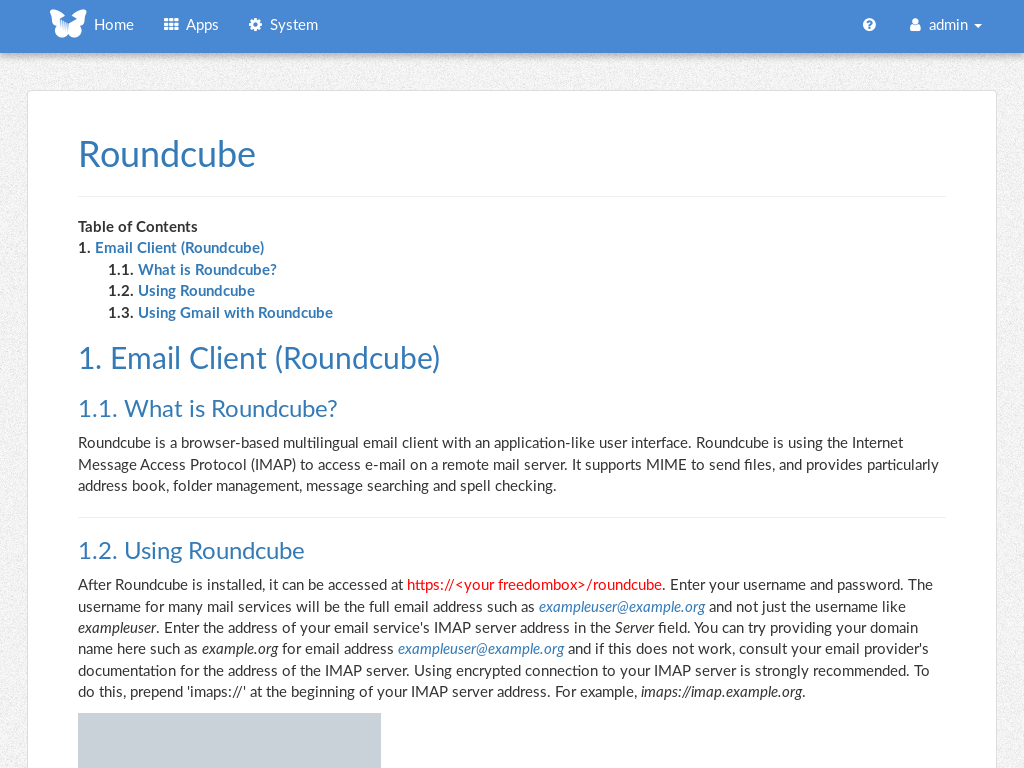
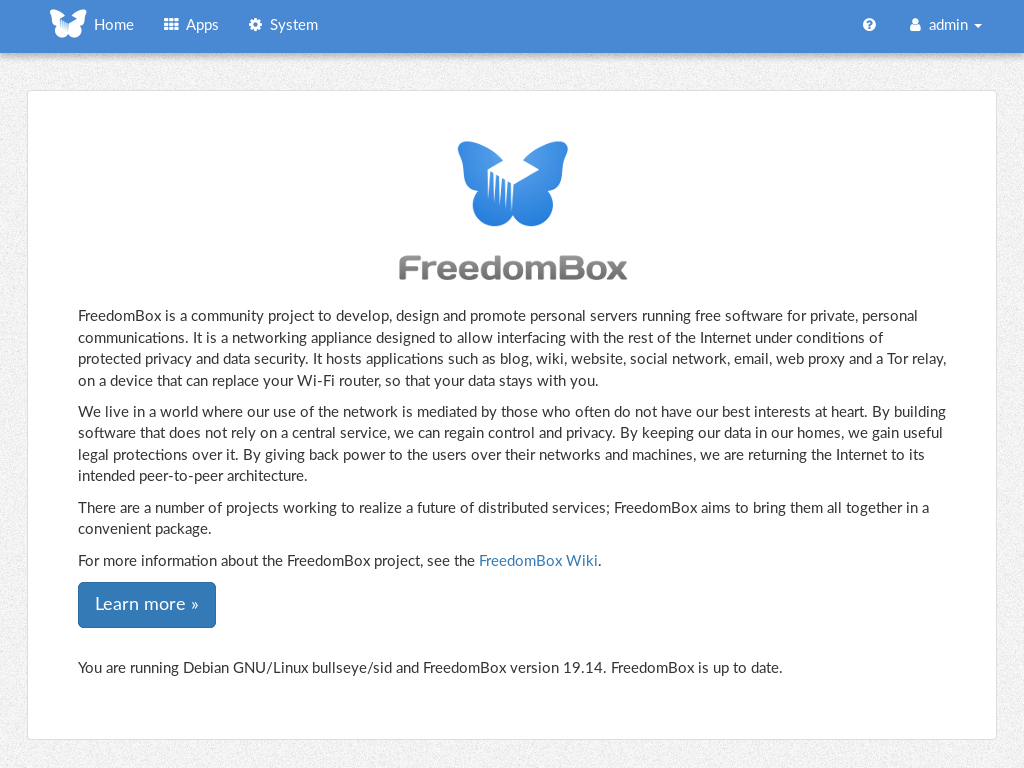
FreedomBox is a community project to develop, design and promote personal servers running free software for private, personal communications. It is a networking appliance designed to allow interfacing with the rest of the Internet under conditions of protected privacy and data security. It hosts applications such as blog, wiki, website, social network, email, web proxy and a Tor relay, on a device that can replace your Wi-Fi router, so that your data stays with you.
This module, called FreedomBox Service and also know as Plinth, is the core functionality and web interface to the functions of the FreedomBox. It is extensible and provides various applications of FreedomBox as modules. Each module or application provides simplified user interface to control the underlying functionality. As FreedomBox can act as a wireless router, it is possible to configure networking. It also allows configuration of basic system parameters such as time zone, hostname and automatic upgrades.
You can find more information about FreedomBox Service (Plinth) on the Plinth Wiki page, the FreedomBox Wiki and the FreedomBox Manual.
Getting Started
To have a running FreedomBox, first install Debian (Buster or higher) on a clean machine. Then run:
$ sudo apt install freedombox
Full instructions are available on FreedomBox Manual's QuickStart page.
For instructions on running the service on a local machine from source code, see INSTALL.md. For instructions on setting up for development purposes, see HACKING.md.
Contributing
See the HACKING.md file for contributing to FreedomBox Service (Plinth).
Localization