 9d6c74c887
Tests:

- Login
  - Login using passkeys works on testing container and stable container.
  - Login page show 'Log in with passkey' button as expected along with key
    icon.
  - On GNOME's Web browser, the login page does not show an error on load.
    Clicking on 'Log in with passkey' shows the error: 'Logging in with passkey
    failed: Browser does not support passkeys.'
  - On Chromium browser, with invalid TLS certficiate, the login page does not
    show an error on load. Clicking on 'Log in with passkey' shows the error:
    'Logging in with passkey failed: NotAllowedError: WebAuthn is not supported
    on sites with TLS certificate errors.'
  - Raising an error in the passkey_login_begin() method shows the error message
    when login page is loaded. Raising an error in the passkey_login_complete
    method shows the error message after passkey is unlocked. In both cases, 500
    is HTTP status code.
  - With primary hardware key register passkey each for 'tester' and 'tester2'
    accounts.
  - With secondary hardware key register passkey for 'tester' account.
  - In login page, loading the page shows the console message 'Signing in with a
    passkey. Condition: true'.
  - In login page, when username field is clicked, 'passkey' is shown in the
    autofill popup options. Selecting it prompts for hardware PIN and touch.
    User is logged in.
  - In login page, when 'Log in with passkey' is clicked, console message is
    show 'Log in initiated with button, conditional mediation aborted.'.
    Hardware PIN and touch is prompted. User is logged in.
  - During autofill login, canceling the hardware key PIN shows no error alert.
    Autofill passkey login is not available.
  - During autofill login, canceling the hardware touch prompt shows no error
    alert. Autofill passkey login is not available.
  - During button login, canceling the hardware key PIN shows '...user denied
    permission' error alert. Autofill passkey login is not available.
  - During button login, canceling the hardware touch prompt shows no '...user
    denied permission' error alert. Autofill passkey login is not available.
  - When multiple attempts fail, multiple error alerts are shown.
  - During login, with primary key account selection dialog is shown. Selecting
    'tester' logs into 'tester' account. Selecting 'tester2' logs into 'tester2'
    account.
  - During login, with secondary key, account selection dialog is not shown.
    User is logged into the 'tester' account.
  - Password based login continues to work as usual on Firefox, Chromium, and
    GNOME's web.
  - Logout, then visit /freedombox/sys/. This redirects to login page. After
    login with passkey the browser is redirected to /freedombox/sys page.
  - After passkey login, 'Last Used' for that key is updated. The value is not
    updated for remaining keys of the account.
  - After successful login, database is updated with the latest signature
    counter.
  - After successful login, for a user account with Spanish set as language, the
    UI language changes to Spanish.
  - If a key has been removed from list of passkeys and that passkey is
    attempted for login, 'Passkey used is not known' error alert is shown.

Signed-off-by: Sunil Mohan Adapa <sunil@medhas.org>
Reviewed-by: James Valleroy <jvalleroy@mailbox.org>





FreedomBox Service (Plinth)
The core functionality and web front-end of FreedomBox.




Description
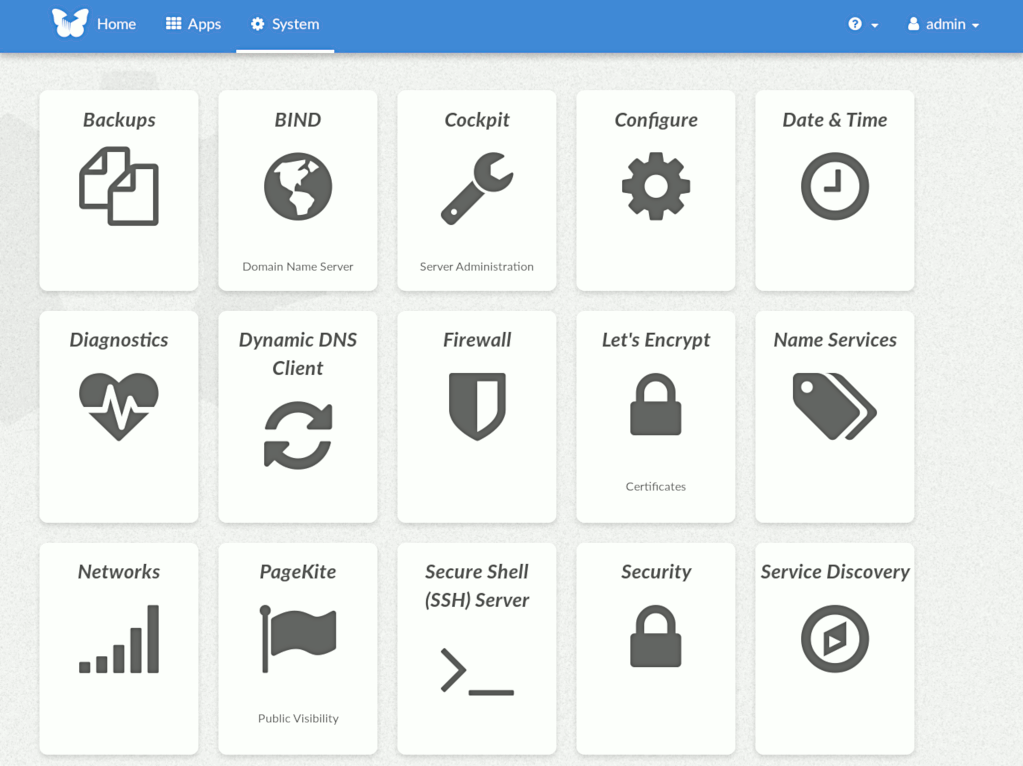
FreedomBox is a community project to develop, design and promote personal servers running free software for private, personal communications. It is a networking appliance designed to allow interfacing with the rest of the Internet under conditions of protected privacy and data security. It hosts applications such as blog, wiki, website, social network, email, web proxy and a Tor relay, on a device that can replace your Wi-Fi router, so that your data stays with you.
This module, called FreedomBox Service and also know as Plinth, is the core functionality and web interface to the functions of the FreedomBox. It is extensible and provides various applications of FreedomBox as modules. Each module or application provides simplified user interface to control the underlying functionality. As FreedomBox can act as a wireless router, it is possible to configure networking. It also allows configuration of basic system parameters such as time zone, hostname and automatic upgrades.
You can find more information about FreedomBox Service (Plinth) on the Plinth Wiki page, the FreedomBox Wiki and the FreedomBox Manual.
Getting Started
To have a running FreedomBox, first install Debian (Buster or higher) on a clean machine. Then run:
$ sudo apt install freedombox
Full instructions are available on FreedomBox Manual's QuickStart page.
For instructions on running the service on a local machine from source code, see INSTALL.md. For instructions on setting up for development purposes, see HACKING.md.
Contributing
See the HACKING.md file for contributing to FreedomBox Service (Plinth).
Localization

License

FreedomBox is distributed under the GNU Affero General Public License, Version 3 or later. A copy of AGPLv3 is available from the Free Software Foundation.